You need the customer (admin) or helpdesk role to manage users.
User management
User administration often takes the most time. That is why 2LRN4 is designed so organisations can manage users themselves — as easily as possible. You can also synchronise users with Microsoft Azure AD. In that case, user management happens at Active Directory level, so you avoid duplicate administration.
Create user and edit user
Manually creating users is not common, but it is possible. In practice, you will mostly use bulk import. Only comma-separated CSV files (.csv) can be imported.
Important: use a CSV with a comma delimiter (not a semicolon). Excel exports often use ;.
The first row must contain the field names, for example:
"First Name","Last Name","Email","Department","language","Is Active","Enable MFA"
Use a lower-case language code (e.g. nl, en).
| First Name | Last Name | Department | Language | Is Active | Enable MFA | |
|---|---|---|---|---|---|---|
| First name | Prefix + last name | Email address | Department / division / team | en | 1 = yes 0 = no |
1 = yes 0 = no |
When creating/importing users you may see options such as:
- Send password reset email (not needed when using SSO)
- Send verification email (mainly useful for demo accounts)
- Send a welcome email (customisable per organisation; see email messages)
Note: ideally import per role. You can correct exceptions afterwards.
In most environments, course access is determined by Department. If you import a new department, make sure it also has access to the correct categories and courses.
Disable a user
When someone leaves the organisation, it is best to disable the user instead of deleting them. This is useful because:
- users sometimes return and do not have to start from scratch;
- management reports often rely on historical statistics;
- customers typically only pay for active users.
Many organisations use their own retention policy, for example: delete users after 3 months of inactivity.
Blocked users
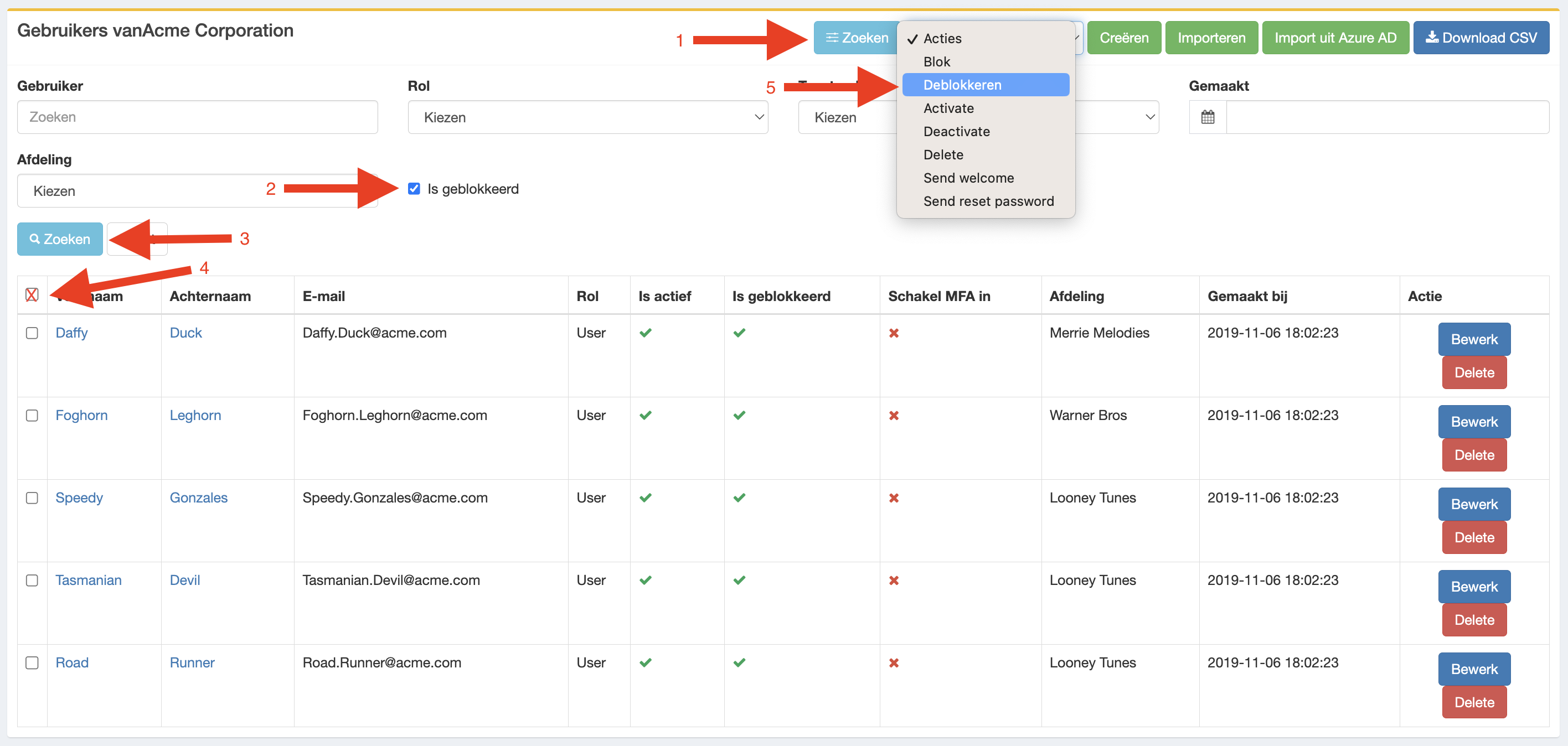
If a user enters the wrong password more than 3 times, the account can be blocked. You can unblock it in user management. Blocking can also be used deliberately as an additional security measure.
Enable or remove MFA
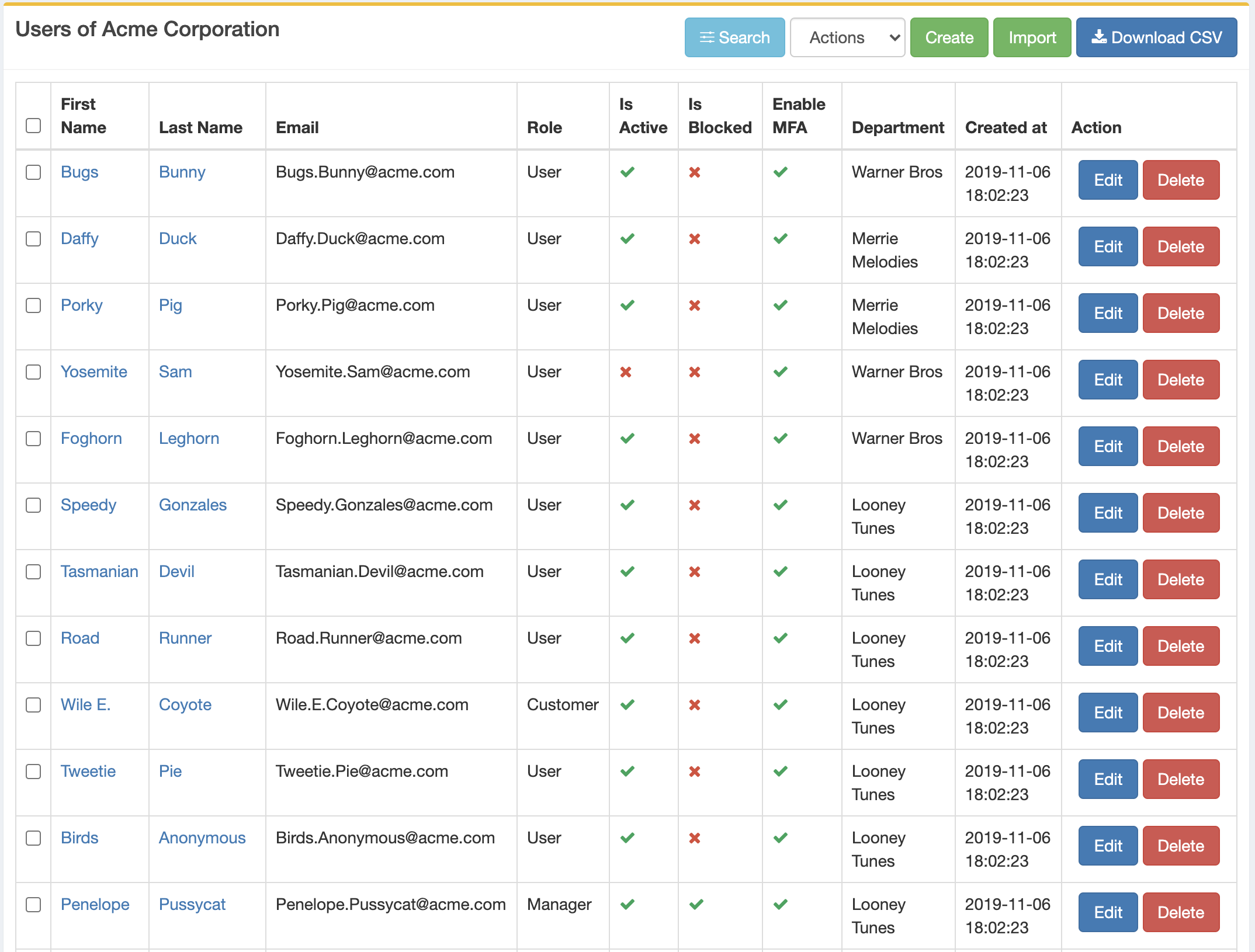
In some cases you want to enforce MFA (for example for Admin and Customer roles). You can do this by enabling Enable MFA. For support purposes, there is also an option to remove MFA for a user, for example when they have a new phone.