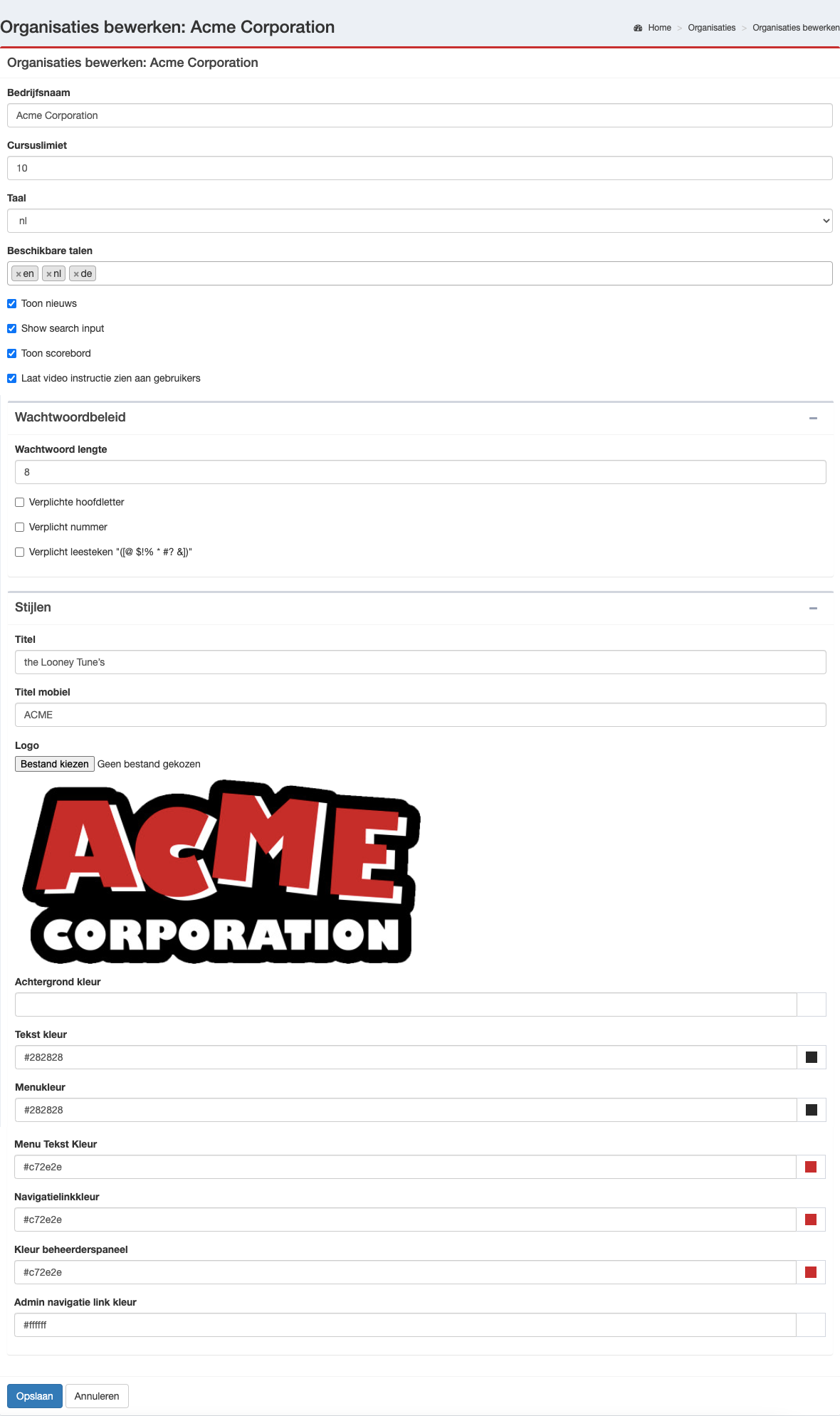
A consistent visual identity increases trust and adoption. Users immediately recognise that the platform belongs to their organisation. In 2LRN4, you can manage your own branding, including logo, colours and several display settings.
Tip: configure your branding (logo and colours) first, and then adjust texts and email templates to ensure a consistent look and feel.
Instructions
| Edit | Go to Edit Company via the menu, or open Companies, select your organisation and click Edit. |
| Company Name | Usually the legal or common company name. This name is not shown to users and is mainly used for administration. |
| Course Limit | Defines how many active courses users see at the same time on their dashboard and course overview. This helps prevent information overload for new users. |
| Language | The default (primary) language of the organisation. |
| Available languages | Select which additional languages are available. Note: changes must be applied for each selected language. |
| Options |
|
| Password policies | If you do not use SSO, you can align the password policy with your organisation’s security requirements. |
| Title | The title shown in the browser tab. |
| Title mobile | A shortened title (usually 3–4 characters) for mobile devices. |
| Logo | Upload your organisation’s logo. Avoid large files to maintain good performance. |
| Colours | Configure your brand colours using hex codes (for example #112233). Make sure there is sufficient contrast for readability. |